EarQuiz updates EarQuiz Frequencies to v0.1.7 – New features, changes and fixes
8th September 2024
 Earquiz has announced that EarQuiz Frequencies, a Free and Open-Source application for EQ ear training, has been updated to version 0.1.7.
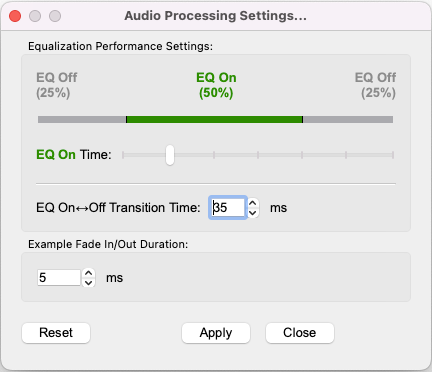
The most significant change in the latest version is the realization an anticipated feature that enables users to adjust the audio processing parameters of training examples, such as the timing ratio between the EQ Off and EQ On phases. This can be accessed through a dialog window by selecting Audio | Audio Processing Settings from the main menu. In prior versions, the processed portion was always set at 40 percent of a training audio sample. This has now become the default, and users have the flexibility to extend the EQ On duration by dragging the EQ On Time slider to the right, allowing for a maximum of 100 percent.
The EQ Always On In Test Mode is a newly introduced feature within the Audio menu of the main menu, closely linked to the previously discussed functionality. This feature is particularly useful during test exercises that utilize pink noise or professionally mixed and mastered music tracks with refined spectral balance. When this mode is activated, it adds a layer of difficulty to the game, aligning it more closely with real-world audio experiences. The aim evolves from just recognizing which frequency bands are adjusted to developing the skill to identify issues that need addressing, without the aid of a reference to unprocessed sound.
Within the Audio Processing Settings window, there are several additional parameters to consider.
The EQ On↔︎Off Transition Time parameter, associated with the Equalization Performance Settings group, specifies the duration of the cross-fade between equalized and non-equalized sections of an audio example. This feature helps to avoid clicks during transitions. Users can select a value ranging from 1 ms to 50 ms, with the default set at 35 ms; shorter values create faster transitions, while longer values result in a smoother effect.
Furthermore, the Example Fade In/Out Duration is set to a default of 5 ms. Users may choose to set this to zero to eliminate fades, especially when preparing a continuous playback package for learning files that will be played back seamlessly. Conversely, setting this parameter to the maximum of 100 ms will ensure the smoothest possible transitions at the start and end of audio segments.
Other changes:
- Old Features:
- Support of native OS audio backends deprecated.
- Possibility to switch between FFmpeg and native OS audio backend deprecated. The application now uses FFmpeg as the only multimedia framework on all the platforms, which results in the equally stable playback of all the supported audio file formats (WAVE, AIFF, FLAC, MP3, OGG).
- Bugs Fixed:
- The bug in Qt6/PyQt6 library that caused deadlock when using FFmpeg backend and led to the application hanging fixed.
- SSL certificate added, fixing HTTPS verification issue during application updates checking process.
- GUI Changes and Improvements:
- Application style changed to 'Fusion' on Windows 11.
- Dark Mode is now supported on Windows 11, along with macOS and Linux.
- And other minor adjustments.
KVR Audio, Inc.
www.kvraudio.com