Yeah, found that right after I posted (as is typical). Cheers anyway.xbitz wrote: Sat Dec 02, 2023 5:14 pm ^^^https://www.ableton.com/en/release-notes/live-12-beta/MIDI Note Editing Operations
New commands for editing MIDI notes have been added, making it quick and convenient to adjust notes directly in the MIDI Note Editor.
Split divides a note into two or more parts by using either the mouse or computer keyboard.
Split with mouse – Hold [E] and click inside a note at the desired location or drag vertically across it to split it. You can split multiple notes simultaneously in the same way: make a note selection, then click at the desired location in any of the selected notes to split them or drag vertically across the selection to split the notes. To split a note or multiple notes into parts based on the current grid settings, press [CTRL][E] (Win) / [CMD][E] (Mac).
Split with keyboard – If no note is selected, press [CTRL][E] (Win) / [CMD][E] (Mac) to split the note at the insert marker location or at the boundaries of the time selection.
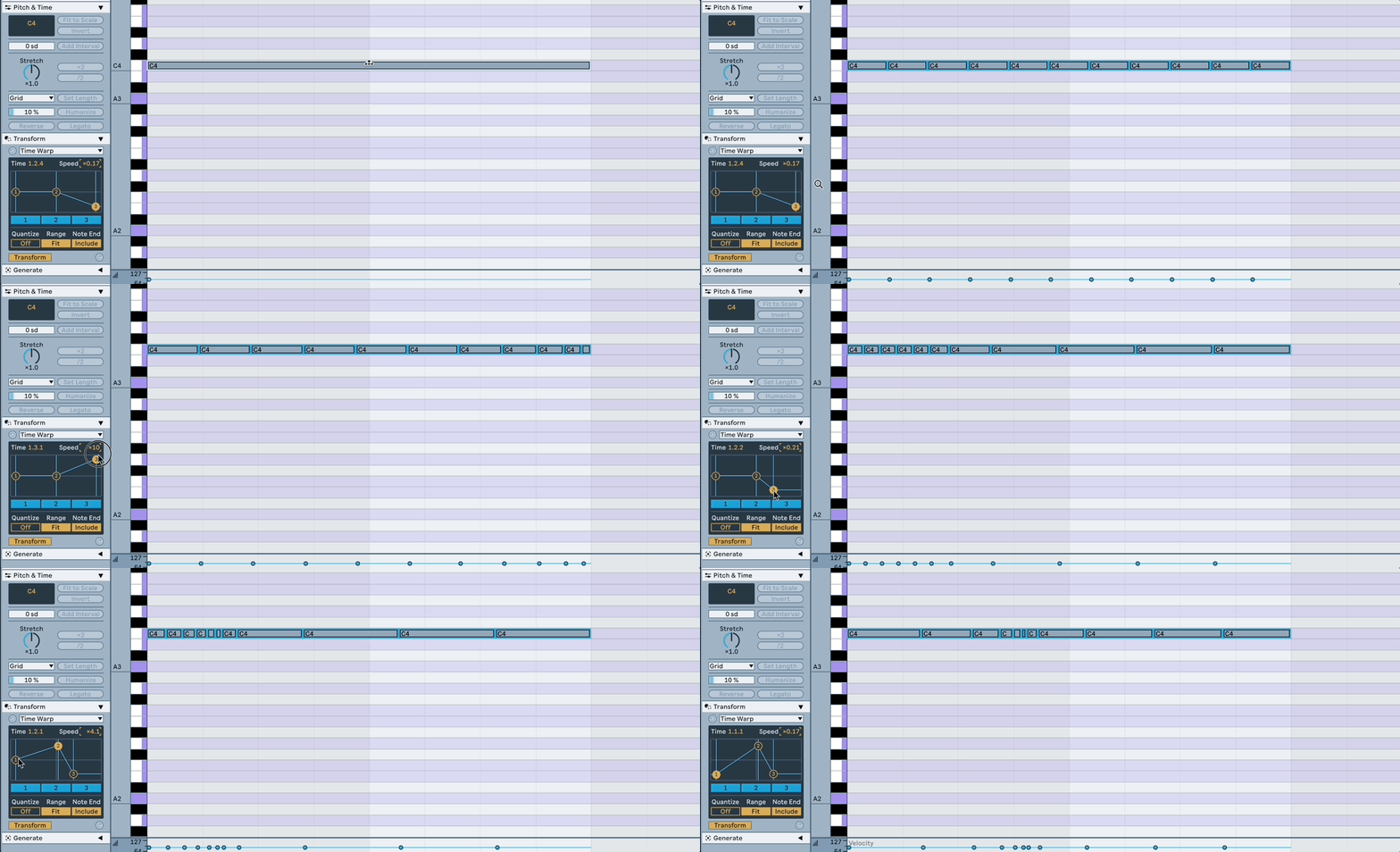
Chop divides selected notes into multiple parts based on the current grid settings or in equal parts, either by using the mouse or computer keyboard.
Chop with mouse – Hold [CTRL][E] (Win) / [ALT][E] (Mac) so that the cursor changes to an arrow and dashed line symbol. Click on a note and drag up to divide the note into equal parts, increasing by one as you drag up. You can hold the [Shift] key together with the shortcut and the number of equal parts will increase by a factor of two as you drag up (note that [Shift] will have no effect if the Computer MIDI Keyboard is switched on). The same operations can be applied to multiple notes simultaneously.
Chop with keyboard – Use the shortcut [CTRL][E] (Win) / [CMD][E] (Mac) to chop notes. While still holding the shortcut keys, you can use the up and down arrow keys to divide notes into equal parts instead of grid steps. The up arrow key will add more divisions, while the down arrow key uses fewer divisions. If you add the [Shift] key, the up and down arrow keys will divide notes by a power of two (note that [Shift] will have no effect if the Computer MIDI Keyboard is switched on).
Join creates a single note from all selected notes that have the same pitch. Any MPE envelope data will be preserved when notes are joined. Use the Join Notes Edit menu command, the context menu option in the MIDI Note Editor, or the shortcut [CTRL][J] (Win) / [CMD][J] (Mac) to join selected notes.
Span (Fit to Time Range) extends selected notes so that their start and end times match the current time selection. For example, if you select multiple notes that have varying end times within a time selection of the first two bars of a four bar clip, using Span will adjust the notes so that they start at 1.1.1 and end at 3.1.1. Use the Fit to Time Range context menu option or the shortcut [CTRL][ALT][J] (Win) / [CMD][ALT][J] (Mac) to span notes.
When using letter-based shortcuts, such as [E] to Split, make sure that the Computer MIDI Keyboard option is switched off so that the keyboard triggers the shortcut and not a MIDI note. Alternatively, you can add the [Shift] key to the shortcut in order to be able to use it while the Computer MIDI Keyboard is on.
I may have hallucinated the mouse-drag to change number of notes to split thing. Only seems to work with up/down arrows?
Great feature tho! n-tuplets and polyrhythms are go.
 (for ex. have to convert a this one
  d'oh
d'oh