1 KVR member has added E-Wah-WahFX300 (JSFX) to 1 MyKVR group 1 time.
Download KVR Studio Manager (FREE)
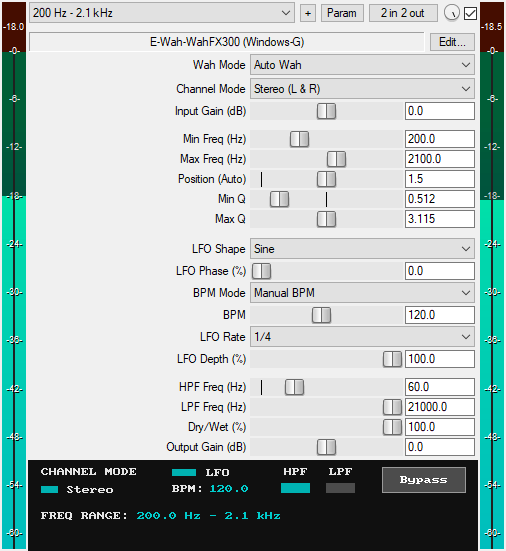
A JSFX wah-wah plugin for REAPER that features:
* Two Wah Modes:
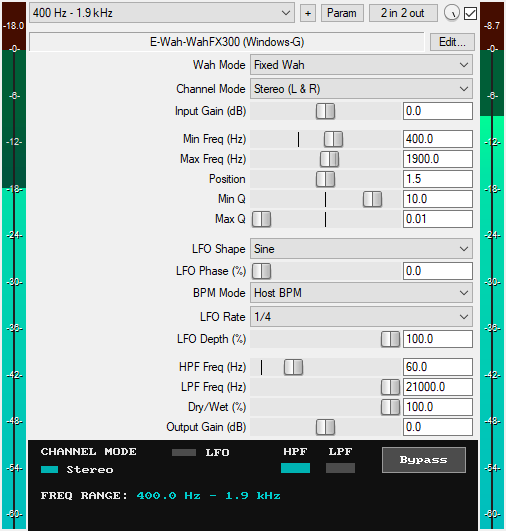
1. Fixed Wah: Manually set the bandpass filter at a static position using the Position slider, locking the wah effect at a specific frequency.
2. Auto Wah: Automatically sweep the bandpass filter using an LFO, creating rhythmic wah effects. The LFO can be synced to the DAW's BPM or run freely at a manually set BPM.
* Six Channel Modes: Mono (Left), Mono (Right), Mono (Sum L+R), Stereo (L & R), Stereo (Mid), and Stereo (Side). The mono modes convert the input signal to mono before the wah processing. In Stereo (L & R) mode, the wah effect is applied to the left and right channels independently. In Stereo (Mid) mode, the effect is applied to the mid channel only, while the side channel remains dry. In Stereo (Side) mode, the wah effect is applied to the side channel only, while the mid channel remains dry.
* Input Gain (dB): Attenuate or boost the level of the input signal from -30 dB to +30 dB before the wah processing. This is useful for level matching when using any of the mono channel modes.
* Min Freq (Hz): Sets the minimum frequency boundary of the bandpass filter sweep from 20 Hz to 800 Hz.
* Max Freq (Hz): Sets the maximum frequency boundary of the bandpass filter sweep from 1.0 kHz to 6.0 kHz.
* Position: Controls the position of the bandpass filter within the defined minimum and maximum frequency boundaries.
* Position (Auto): Displays the current position of the LFO-driven bandpass filter within the defined minimum and maximum frequency boundaries as a visual reference.
* Min Q (0.01 – 15): Sets the resonance of the bandpass filter when it is at the minimum frequency boundary.
* Max Q (0.01 – 15): Sets the resonance of the bandpass filter when it is at the maximum frequency boundary.
* Six LFO Waveforms (Auto Wah mode only): Sine, Cubic S-curve, Square, Triangle, Ramp Down, and Ramp Up.
* LFO Phase (0–100%): Adjusts the starting position of the LFO waveform. Setting the Phase slider to 50% (180°) on symmetrical waveforms (Sine, Cubic S-curve, Square, Triangle) gives you the inverse of these waveforms. For asymmetrical waveforms (Ramp Down, Ramp Up), when Ramp Down is selected and the Phase slider is set to 50% (180°), it produces an inverse sawtooth wave; and when Ramp Up is selected and the Phase slider is set to 50% (180°), it produces a sawtooth wave.
* BPM Mode: Use host BPM or set a custom BPM from 1 to 960.
* LFO Rate: Provides 19 rate divisions, from 2/1 (slowest) to 1/32 (fastest), including dotted and triplet options. The rates are arranged in order of speed: 2/1, 1/1 D, 2/1 T, 1/1, 1/2 D, 1/1 T, 1/2, 1/4 D, 1/2 T, 1/4, 1/8 D, 1/4 T, 1/8, 1/16 D, 1/8 T, 1/16, 1/32 D, 1/16 T, and 1/32.
* LFO Depth (0–100%): Controls the intensity of the bandpass filter modulation across the defined minimum and maximum frequency boundaries. At 0%, no modulation occurs (the filter does not move); at 100%, the filter sweeps the full minimum and maximum frequency range.
* HPF Frequency (0 Hz – 20 kHz): Applies a 12dB/oct high-pass filter to the wah output. The filter becomes active only when the frequency is set above 0 Hz.
* LPF Frequency (20 Hz – 21 kHz): Applies a 12dB/oct low-pass filter to the wah output. The filter becomes active only when the frequency is set below 21 kHz.
* Dry/Wet Mix (%): Blends the unprocessed dry signal with the wah-processed wet signal from 0% to 100%.
* Output Gain (dB): Sets the final output level of the plugin from -30 dB to +30 dB to compensate for volume changes.
* Advanced Host Sync (Auto Wah mode): The LFO phase is synced to the DAW timeline, and the plugin automatically re-syncs on playback start, stop, or when jumping along the timeline.
* GUI Channel, LFO & Filter Indicators: Show the active status of the LFO and the filters, and whether the current channel mode is Mono or Stereo.
* GUI Frequency Range Readout: Displays the current minimum and maximum frequency boundaries for quick reference.
* GUI BPM Readout (Auto Wah mode): Shows the current DAW tempo for quick reference.
* GUI Bypass Button: A dedicated bypass button for toggling the wah effect on or off without audio clicks. Available for automation as "Bypass (Smooth)" in the parameter list.
* Zipper-Noise-Free Operation: Advanced interpolation ensures no zipper noise during slider automation or real-time adjustments.
* Minimal CPU Usage.
* 16 Factory Presets: The plugin comes with 16 factory presets that can be imported via the included RPL file. Instructions for importing the presets are provided in the "Installation & Preset Library Import" file included in the Gumroad plugin download.
You can grab it for $10. All future updates are free, just make sure to use a valid email so I can send future updates to you.
Listen to the audio demos here or on the Gumroad product page to hear what the plugin can do.
Email Support: info.windowsg@gmail.com
==================================
Using This JSFX Plugin in Other DAWs:
If you want to use this JSFX plugin in other DAWs, you can do so using the open-source YSFX plugin.
YSFX is available in VST3, AU, and CLAP formats for Windows, macOS, and Linux.
Download your preferred version of YSFX from here (Click on "Assets" for the downloads to appear):
https://github.com/JoepVanlier/ysfx/releases
YSFX comes in two versions:
* ysfx-s FX (for JSFX effects).
* ysfx-s instrument (for JSFX instruments).
1. Open ysfx-s FX in your DAW,
2. Then click "Load", find your "E-Wah-WahFX300_Windows-G" file, and click "Open."
The JSFX plugin will now run inside the YSFX host, working perfectly in any DAW that supports VST3, AU, or CLAP plugins.
 $49.00Rotary CLS-222
Please log in to join the discussion
Submit: News, Plugins, Hosts & Apps | Advertise @ KVR | Developer Account | About KVR / Contact Us | Privacy Statement | Sell @ KVR | KVR Marketplace Terms & Conditions
© KVR Audio, Inc. 2000-2026