19 KVR members have added Air-G Taped to 15 MyKVR groups 20 times.
Download KVR Studio Manager (FREE)
Air-G Taped is part of Air-G Audio, a collection of plugins built on the open source work of Airwindows, Chris Johnson's project that has been releasing some of the most carefully crafted free DSP algorithms in the audio world.
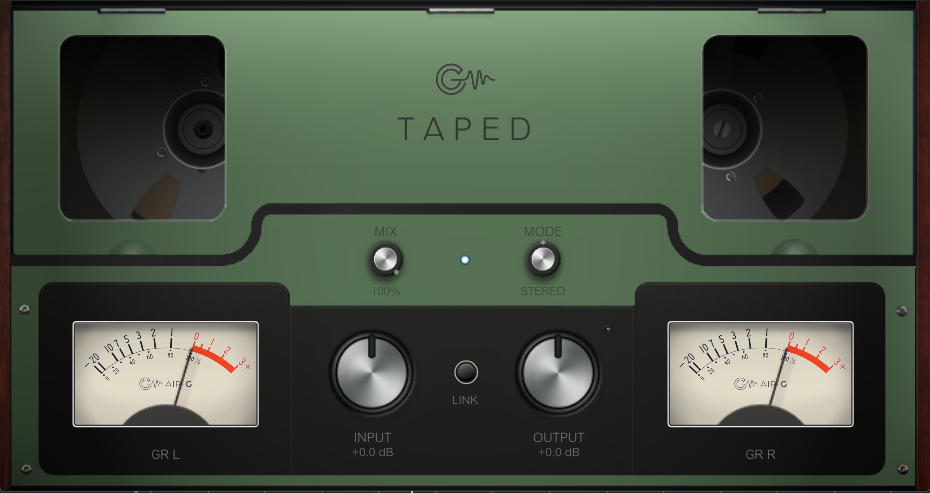
Taped is a tape saturator, but it works differently from what most people mean by that description. It's not a level compressor or an emulation of an analog machine. It does two things at once: saturates the signal with a sine-shaped curve that rounds peaks and adds warmth, and limits the highs, so that when there's too much high-frequency energy it reaches a point beyond which it can no longer get louder. That second behavior is what sets it apart, similar to how real tape handles brightness but achieved through completely different means. Chris describes it as a softclip that also stops highs from getting louder, achieved through means that have nothing to do with actual tape. Air-G adds a parallel mix control (MIX), an Input/Output mirror link (LINK) for exploring saturation without perceived volume changes, and an M/S mode selector (Stereo, Mid, Side) for selectively processing the center or the sides of the stereo image.
The engine is Airwindows' TapeHack2, which is also part of the core of ToTape9, the same algorithm at the foundation of Air-G Tape. The internal filtering system uses stacked averaging filters that create a very steep high-frequency rolloff with excellent time-domain behavior, without pre-ringing or resonances. MID mode is especially useful in mastering: it saturates the center without touching the stereo image; SIDE mode does the opposite.
Taped works wherever hard highs, digital aliasing, or harshness from synthetic sources are the problem: drum buses to tame cymbals and hi-hats, the 2-bus as a subtle layer of warmth and cohesion, center instruments via MID mode, and synthesizers or samples that are too bright. MIX lets you dial in the effect in parallel without losing the original attack. There is also Air-G Taped Mini, a version with the same audio engine in a compact rack module-style interface.
---
Air-G Audio is a collection of plugins built on the open source code of Airwindows. The project is built around adding a graphical interface that makes the experience more comfortable and visual, along with a few features that expand the possible uses without straying from the original sound. The simplicity and lightness of Chris's code are the starting point and the guide.
Thanks to Chris Johnson for making his work public and accessible. Air-G Audio exists because Airwindows exists. The Airwindows code used in this plugin is published under the MIT License.
Air-G Taped is free. You can download it without paying anything, following the same open philosophy that runs through all of Chris's work. If the plugin is useful to you in your music, a contribution is always welcome. Chris Johnson's Patreon is also worth knowing about: it's the most direct way to support the Airwindows project and the work that makes plugins like this one possible. patreon.com/airwindows
Available for Windows, Linux and macOS.
*New: Windows & Linux — All VST3, no installer download
***Windows note: the installer is not signed with a paid certificate, so SmartScreen may show a "Windows protected your PC" warning. Click "More info", then "Run anyway" to continue. This is expected and not a problem with the plugin.
***macOS note: the plugin is not signed with an Apple developer certificate, so Gatekeeper may block it on first use. The "Open Anyway" option in System Settings does not work reliably for audio plugins. The correct fix requires Terminal:
1. Open Terminal (Applications > Utilities > Terminal).
2. Type: sudo xattr -rd com.apple.quarantine (leave a space at the end, do not press Enter yet).
3. Open Finder and navigate to your plug-in folder: VST3 plugins are in /Library/Audio/Plug-Ins/VST3/, and AU plugins (for Logic and GarageBand) are in /Library/Audio/Plug-Ins/Components/. Drag the plugin file (the .vst3 or the .component) into the Terminal window. The path fills in automatically.
4. Press Enter and type your admin password when prompted (it will not be visible). Press Enter again.
5. Rescan your plugins in your DAW. The plugin should now appear. If you installed both the VST3 and the AU versions, repeat the process for each file.

Please log in to join the discussion
Submit: News, Plugins, Hosts & Apps | Advertise @ KVR | Developer Account | About KVR / Contact Us | Privacy Statement | Sell @ KVR | KVR Marketplace Terms & Conditions
© KVR Audio, Inc. 2000-2026