21 KVR members have added M-Puncher 2 to 19 MyKVR groups 21 times.
Download KVR Studio Manager (FREE)
M-Puncher 2 is a groundbreaking transient shaper audio plug-in that adds organic musical punch without raising the peak levels. It gives you precise control over attack and sustain portions of the audio, making it faster than ever to sculpt the dynamics of your track to perfection.
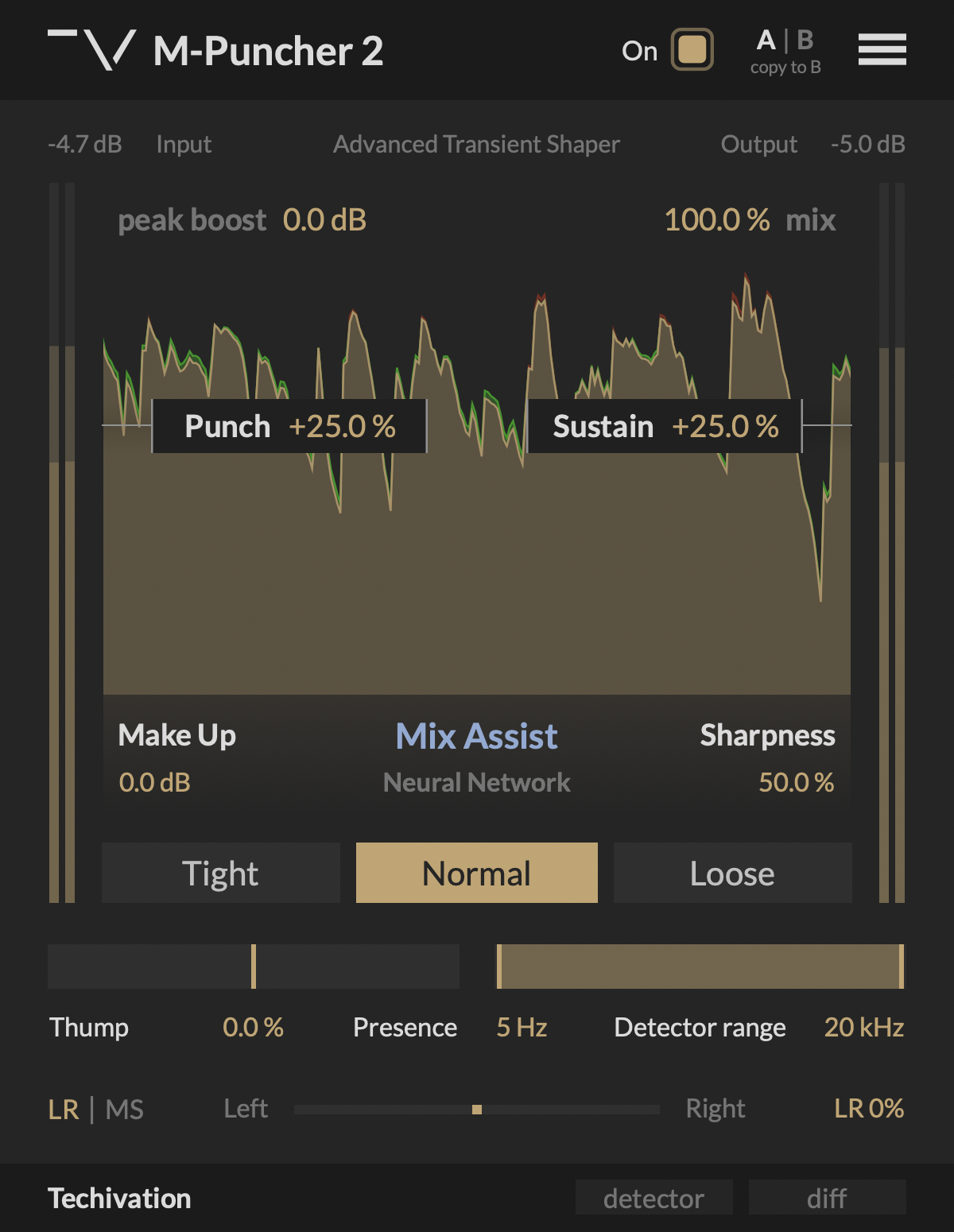
"Punch" controls the amount of boost or cut applied to the attack portions (transients) of the signal. Increase "Punch" to emphasise the impact of the percussive elements of your audio, or decrease it to soften them instead. Depending on the "Peak Boost" setting, boosting "Punch" utilises a blend of three transient enhancement methods.
"Sustain" controls the amount of boost or cut applied to the decaying parts of your audio. Increasing "Sustain" lengthens the decay of the sounds and brings up the density and ambiance of your track. Reducing "Sustain" makes the sounds decay faster, giving your track a more dry, close-up and percussive character.
"Peak Boost" sets the maximum amount in decibels by which peak levels are allowed to increase when boosting "Punch". Keeping "Peak Boost" at 0.0 dB ensures that M-Puncher 2 will preserve the original peak levels, no matter how much you boost "Punch". Higher "Peak Boost" settings will allow the peak levels to be increased, but by no more than the chosen amount. "Peak Boost" operation is completely independent of the input signal level and doesn't use a fixed threshold. Instead, it constraints how much the peak level can increase compared to its original value. This ensures that M-Puncher 2 is equally effective for inputs of any loudness and dynamic range.
"Sharpness" controls the character of transient shaping applied by "Punch". Higher values produce a sharp and focused response ideal for percussive sounds, while lower settings result in more gentle and open shaping that is perfect for sustained instruments. Internally, "Sharpness" controls how gently the gain applied to attacks by "Punch" is released, along with the intensity of Dynamic Transient Saturation.
The "Thump-Presence" slider applies a bass or presence boost to attack portions of your audio. It allows you to accentuate the low-end impact or high-end brilliance of the track while preserving the original tonal balance. When "Thump-Presence" is set to 0.0%, the tone of attacks remains unchanged. Moving the slider towards "Thump" or "Presence" shifts the tonal balance of the attacks accordingly, while keeping the rest of the signal completely unaffected. "Thump-Presence" control utilises a linear-phase filter to deliver clean tonal shaping of transients without any phase cancellation issues.
You can choose between three envelope styles ("Tight", "Normal", and "Loose") for shaping the attacks of your track using the "Punch" control:
"Detector range" control allows you to limit the frequency range that M-Puncher 2 analyses to identify attack and sustain portions of the audio. For example, when processing the full drum kit, you can target only the snare and the hi-hats by targeting a high frequency range, or target only the kick drum by targeting a low frequency range. "Detector range" only affects the internal sidechain that M-Puncher 2 analyses to calculate the attack and sustain volume envelopes. The processing itself is always applied to the full range of the signal to ensure that the impact of the attacks is never compromised by splitting the audio into multiple bands.
The "Mix Assist" button enables M-Puncher 2 to capture and analyse the input and intelligently set the processing parameters. The plug-in will capture 3.5 seconds of audio for the analysis. Make sure to play the busiest part of your track when learning to get the best results.
The built-in waveform visualiser helps you see the changes M-Puncher 2 is doing to your audio in real time. It shows the boosts applied by the plug-in in green, while the cuts are shown in red.
The "detector" button allows you to listen to just the frequency range selected by the "Detector range" control. This enables you to fine tune the elements of your track that the plug-in should respond to. The "diff" button enables you to listen to the difference between the processed and original signals. This allows you to audibly perceive the spectral additions made by the plug-in, making it easier to fine-tune its parameters.
The "mix" control allows you to blend between the processed and the original signals, giving you quick access to parallel processing.
The "Left-Right / Mid-Side" section of M-Puncher 2 allows you to switch processing between LR (left-right) and MS (mid-side) modes, and control the balance of the plug-in's effect on the stereo channels. In LR mode, the plug-in processes the left and the right channels independently. If you need to preserve the stereo balance of your track, switch the processing to MS mode. You can switch the mode by clicking on "LR | MS" on the left side of the balance slider, and set the amount either by dragging the slider, or double-clicking and typing the percentage value.
"Make Up" controls the amount of clean gain applied to the processed signal.
M-Puncher 2 plug-in features a dedicated bypass/on control, which allows for the swift enabling or bypassing of the effect. This user-friendly control is designed to help avoid potential clicks or audio artefacts that may occur when toggling the effect on or off directly within the DAW host.
The interface scaling feature in M-Puncher 2 allows you to customise the size of the GUI to suit your preferences and optimise your workflow. With a range of scaling options available, from 50% to 150%, you can personalise the interface to match your visual and working style.
Undo/redo options.
{See video at top of page}

Please log in to join the discussion
Submit: News, Plugins, Hosts & Apps | Advertise @ KVR | Developer Account | About KVR / Contact Us | Privacy Statement | Sell @ KVR | KVR Marketplace Terms & Conditions
© KVR Audio, Inc. 2000-2026